
How to Configure Date & Time?
Set your organization’s date format, time format, and timezone so every invoice, order, and report reads the way your team and customers expect. Rentablez picks a sensible default based on your country, but you can override any of these settings and preview the result live before you save.
Why Configure Date & Time?
Correct date and time settings ensure:
- Invoices and quotes show dates in your customers’ expected format.
- Reports and timestamps reflect your actual business hours, not server time.
- Rental durations are calculated and displayed consistently.
- There’s no confusion between regions that write dates differently (for example
25/12/2026vs12/25/2026).
How to Configure
Navigate to Settings > Organization > Date & Time.
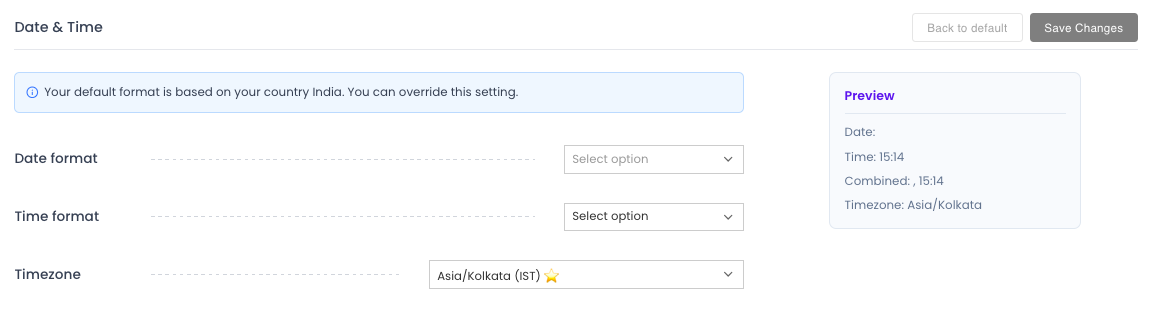
A notice at the top tells you which country default your formats are based on and reminds you that you can override it. The Preview card on the right updates in real time, showing a sample Date, Time, Combined date-time, and your selected Timezone exactly as they’ll appear on documents.
Saving requires the Settings write permission. If you have read-only access, the fields show the current settings but the Save Changes and Back to default buttons stay disabled.
Select Date Format
Open the Date format dropdown and choose one of the available formats:
| Option | Example | Common In |
|---|---|---|
DD/MM/YYYY | 25/12/2026 | UK, India, Australia, Europe |
YYYY/MM/DD | 2026/12/25 | East Asia, ISO-style ordering |
MM/DD/YYYY | 12/25/2026 | United States |
The Preview updates the moment you pick a format, so you can compare before committing.
Select Time Format
Open the Time format dropdown and choose how times are displayed:
| Option | Example | Description |
|---|---|---|
12H (PM / AM) | 2:30 PM | 12-hour clock with AM/PM |
24H | 14:30 | 24-hour clock |
Select Timezone
Your timezone ensures all timestamps reflect your actual business hours.
- Open the Timezone dropdown.
- Type in the search box (for example “Kolkata”, “New York”, or “London”) to filter the list.
- Select your timezone. Timezones that match your country are marked with a star so you can spot the recommended one quickly.
The list is searchable — start typing your city or region rather than scrolling through every zone.
Save Your Changes
Once your selections are in place and the Preview looks right, click Save Changes. Your new formats apply across the app immediately.
If you want to undo edits you haven’t saved yet, click Back to default to restore the last saved settings. Both buttons stay disabled until you actually change something.
Best Practices
- Match your region — use the date and time formats your customers already read fluently.
- Set the timezone accurately — an incorrect timezone shifts timestamps on orders, invoices, and reports.
- Review after a move — if your business relocates to a new region, update the timezone so records stay correct.