
How to Create Variant Options?
Variants let you offer the same item in different configurations—laptops with different processors, generators with different power ratings, power strips with different socket counts—without creating a separate item for each one. You define the options (the characteristics that differ) and their values (the actual choices), then Rentablez lets you add stock and set pricing per combination.
Once your options are in place, you can set variant-specific pricing and add stock for each variant.
Options are added after the item exists. Variant options are not part of the create-item form. First create the item, then open it and add options from the Variants & Options tab as described below.
Permission needed: Adding, editing, or deleting options requires the assets.write permission. Without it you can view options but the add and edit controls won’t appear.
Open the Variants & Options Tab
- Go to Inventory and select the item you want to configure (for example Dell Laptop or Power Strip).
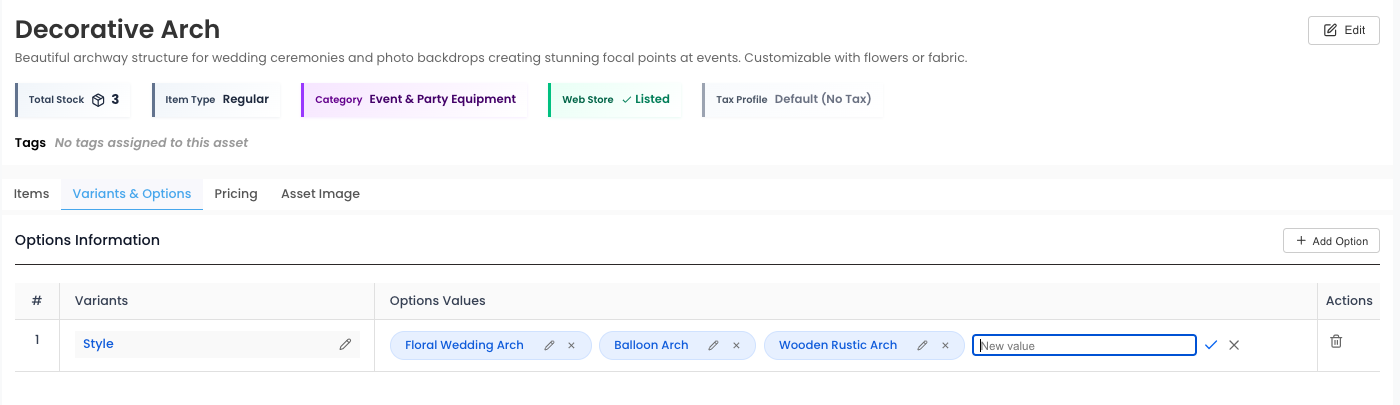
- The item detail page opens with a row of tabs: Items, Variants & Options, Pricing, and Asset Image.
- Click the Variants & Options tab.
Create Your First Option
When an item has no options yet, the tab shows a short explainer with a few equipment examples and a Create Your First Option button.
- Click Create Your First Option.
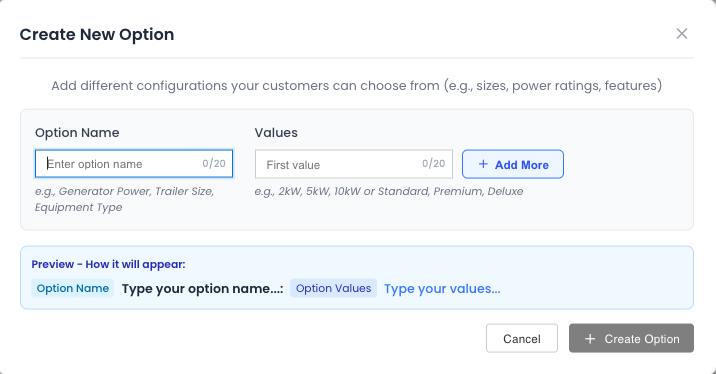
- The Create New Option dialog opens.
Fill in the details:
- Option Name — the characteristic that differs between units (maximum 20 characters).
- Examples: Size, Color, Processor, Sockets, Generator Power, Trailer Size.
- Values — the actual choices customers can pick (maximum 20 characters each). Each value has its own box.
- Examples: Small, Medium, Large — or i5, i7, i9 — or 2kW, 5kW, 10kW.
- Click Add More to add another value box; use the X next to a box to remove it.
The Preview panel shows how the option name and its values will read once saved.
- Click Create Option. (The button stays disabled until you enter an option name and at least one value, and duplicate values are flagged so you can fix them first.)
The new option appears under Options Information as a row listing the option name and all its values.
Add More Options
An item can have more than one option—for example both Size and Color. Once at least one option exists, use the Add Option button in the Options Information header to open the same Create New Option dialog and define another characteristic.
Rentablez treats every combination of values as its own variant you can stock and price separately. So an item with Size (Small, Large) and Color (Red, Blue) has four variants: Small + Red, Small + Blue, Large + Red, and Large + Blue.
Keep the number of options practical. Every extra option multiplies the number of combinations you’ll need to stock and price.
Editing Options and Values
All edits happen inline on the Variants & Options tab—no separate dialog:
- Rename an option — click the option name (or its pencil icon), type the new name, and press Enter or click the check mark.
- Rename a value — click the pencil on a value chip, edit it, and confirm.
- Add a value to an existing option — click the dashed + Add chip at the end of that option’s values, type the value, and confirm.
- Delete a value — click the X on the value chip.
- Delete a whole option — click the trash icon in that row’s Actions column.
Duplicate names and values are rejected (case-insensitive) with an on-screen warning, so each value inside an option stays unique.
In-use protection: If a value or option is already used by existing stock, its delete control is disabled and a tooltip reads “Cannot delete - Value is in use” or “Cannot delete - Option has values in use.” Remove or reassign the stock on those variants first, then delete.
Common Variant Examples
| Item | Option | Values |
|---|---|---|
| Laptops | Processor | i5 / i7 / i9 |
| Tents | Size | Small / Medium / Large |
| Power Strips | Sockets | 4 / 6 / 8 |
| Generators | Power | 2kW / 5kW / 10kW |
| Projectors | Lumens | 1000 / 3000 / 5000 |
| Tables | Shape | Round / Rectangle / Square |
When should you use variants? Use them when one item type comes in specifications customers need to choose between. If the units are genuinely different products with different rental behaviour, create separate items instead.
What’s Next
You’ve defined how this item can vary. To make those variants orderable:
- Add stock for each variant so units are available to rent — see How to Add Stock with Variants?.
- Set pricing per variant on the Pricing tab — see How to Set Pricing for Variants?.