
How to Create an Enquiry?
Rentablez enquiries let you capture and manage customer requests before they become confirmed orders. For example, when a customer calls asking for camera equipment for a weekend shoot, you can quickly create an enquiry, add the requested cameras and accessories, check availability for their dates, capture the lead details, and save it while they finalize their budget — all within minutes.
Creating and editing enquiries requires the enquiries.write permission. Users with read-only access can open enquiries in View mode but won’t see the New Enquiry or edit actions. Create, edit, and convert actions are also limited to your assigned branch.
Customer Called In? — Open a New Enquiry
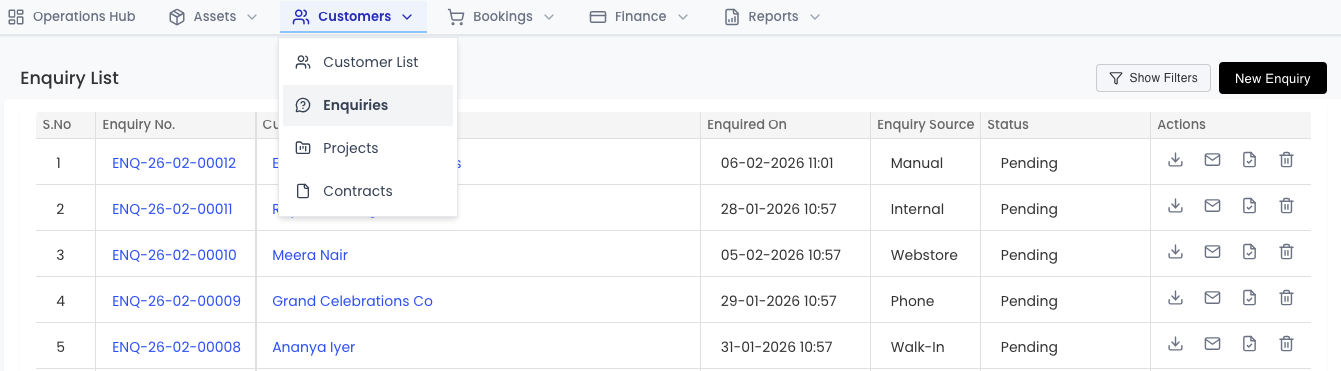
Go to Enquiries in the main menu and click New Enquiry to begin.
When Do They Need It? — Set Rental Dates
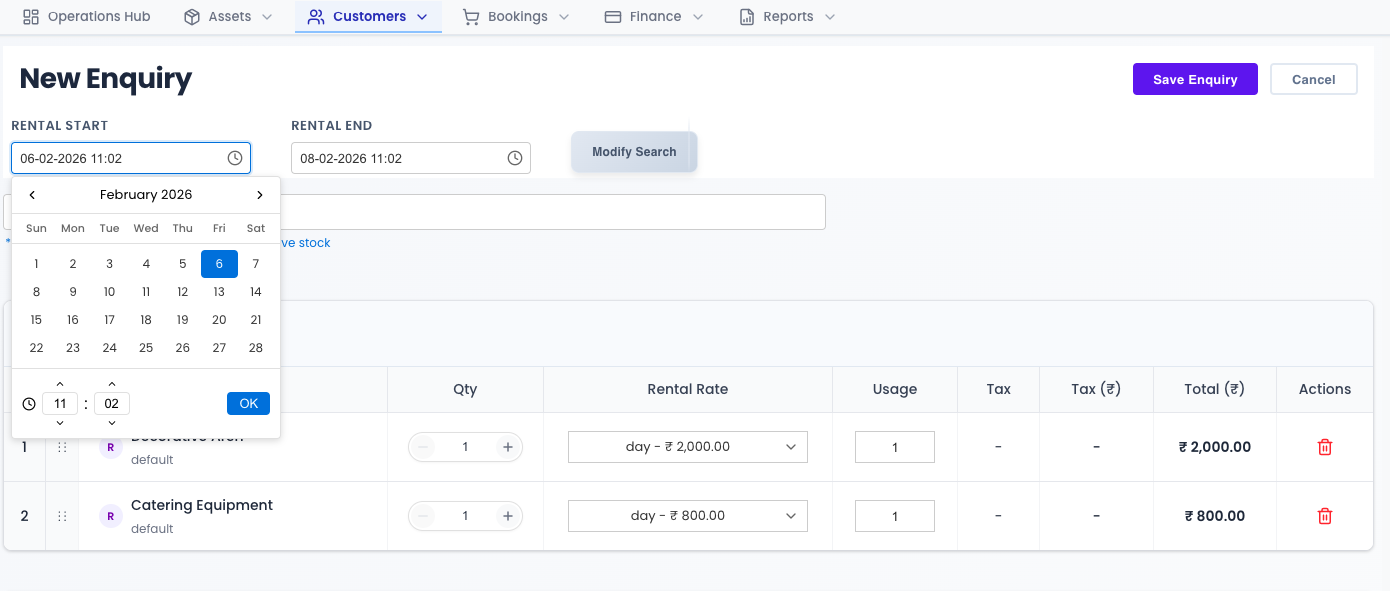
Choose the Start Date and End Date for the requested rental period. Rentablez uses these dates to check availability and calculate rental duration.
What Are They Asking For? — Add Equipment
Search and add items to the enquiry based on what the customer needs. Rentablez supports three asset types:
| Type | What it is | Learn more |
|---|---|---|
| Regular Assets | Individual serialized items like cameras or laptops | Creating Assets |
| Bulk Assets | Quantity-based items like cables or batteries | Managing Bulk Assets |
| Kits | Pre-configured equipment packages | Creating Kits |
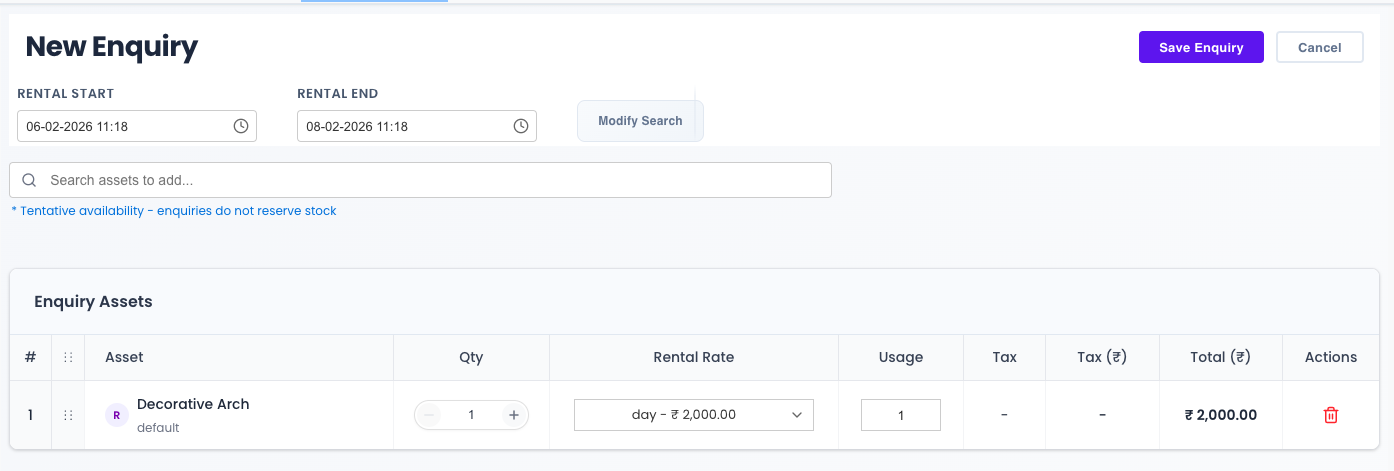
For each added line you can adjust the quantity, duration, and rate to match what the customer is asking for.
Rentablez shows real-time availability for your selected dates. You can add items to the enquiry even if they’re currently unavailable — they may be returned by other customers before the rental period begins, or added to inventory later. Availability is only enforced when the enquiry becomes a confirmed order.
Working Out the Price? — Financial Details
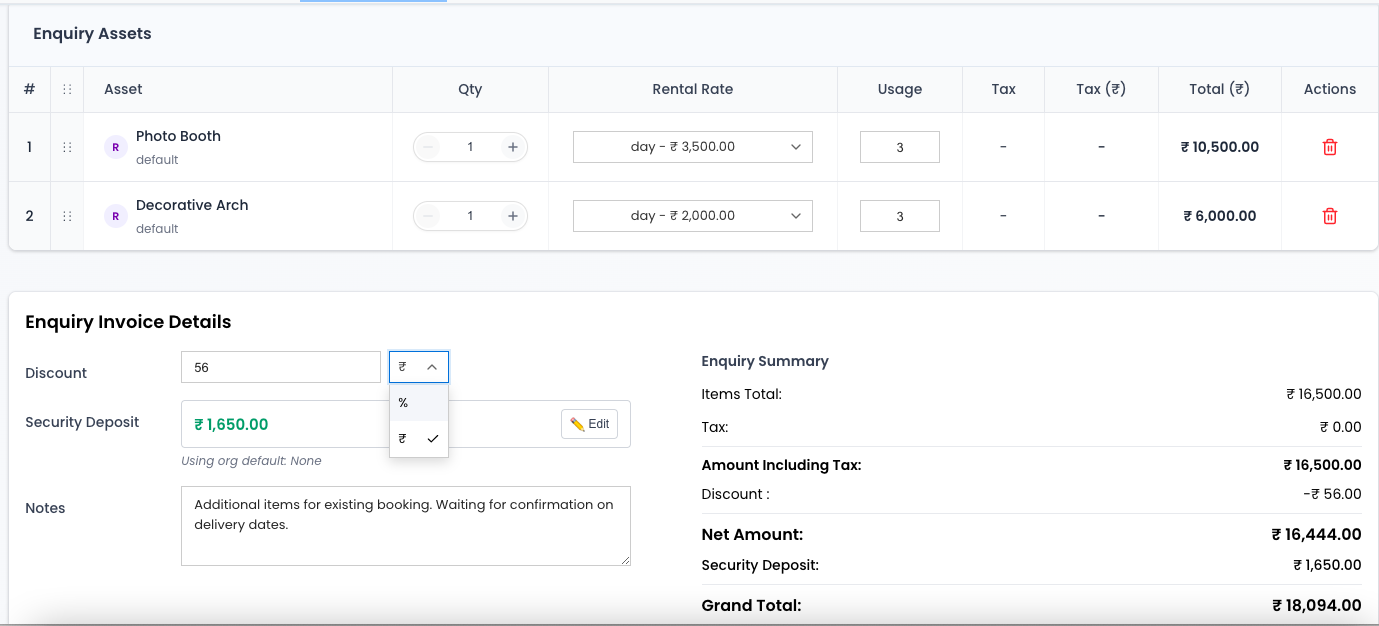
Apply a Discount — choose a Fixed amount off the total or a Percentage of the rental value.
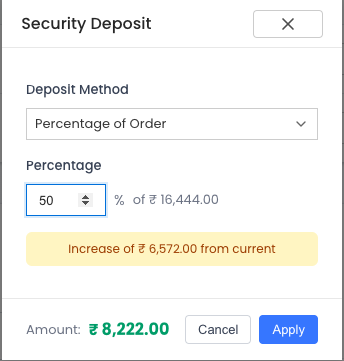
Set a Security Deposit — click the deposit field to open the deposit editor. You can:
- Use your Organization Default (calculated automatically from your settings).
- Enter a Fixed Amount.
- Apply a Percentage of Order.
- Use the Asset Level total (the sum of each asset’s own deposit), when enabled.
You also set the deposit’s refund type — Refundable (returned to the customer after the order closes) or Non-Refundable (retained as revenue when the order closes).
Taxes — applied automatically based on your tax configuration and the customer’s location. No manual calculation needed.
Any Special Instructions? — Add Notes
Include delivery instructions, special requests, or any other details in the Notes field. These carry over automatically if the enquiry is converted to an order.
Who Is It For? — Save and Link a Customer
Click Save. Rentablez then asks you to link a customer.
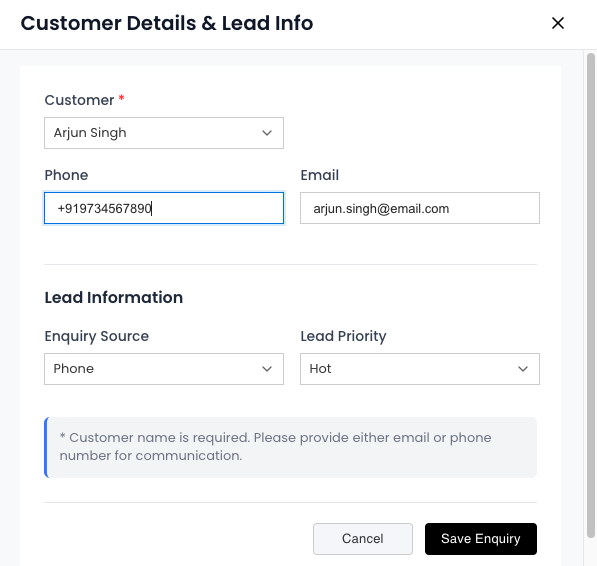
Search for an existing customer by name or phone number — their saved profile and rental history load automatically. If they’re new, create a new customer on the spot by entering their name and mobile number. You can complete their full profile later from the Customers page.
Capture the Lead Details
In the same customer step, a Lead Information section lets you record how the lead came in and how promising it is:
- Enquiry Source — where the request originated: Phone, Email, Walk-in, or Website.
- Lead Priority — how hot the lead is: Hot, Warm, or Cold.
These values power the filters and follow-up views on your enquiry list, so your team can prioritise the right deals. See How to Track & Follow Up?.
Pass-through (3PL) customers: if the linked customer is a pass-through customer and your account has end-clients enabled, a Client ID selector appears so you can attribute the enquiry to the correct end client.
You’re All Set!
The enquiry is saved and linked, with a status of Pending. Once the customer confirms their equipment list, you can download a branded quote or convert the enquiry into an order. Rentablez keeps every enquiry organized so nothing falls through the cracks.