
How to Lock, Unlock and Monitor Laptops?
Once a laptop is installed, everything you do with it happens in the Guard app (or under Settings → Device Guard in the main Rentablez app). Open Devices and select the laptop to see its renter, lock state, last seen time, location and agent details.
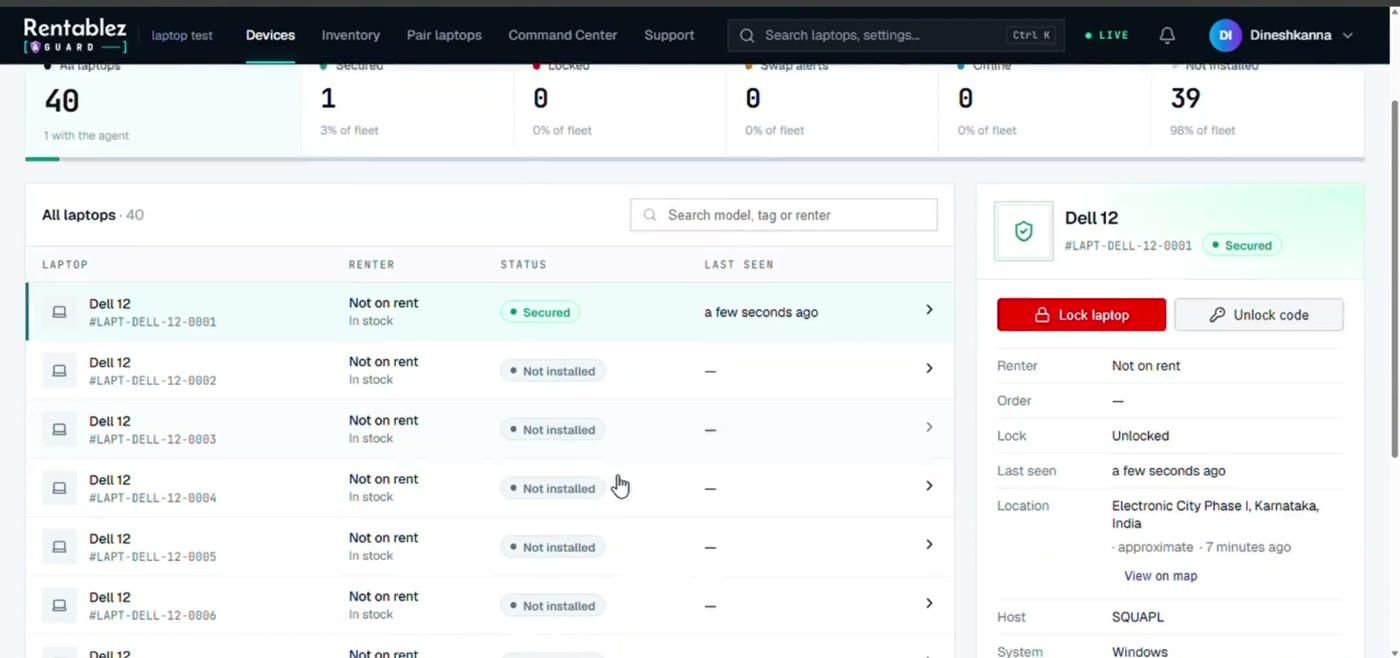
Lock a Laptop
- Select the laptop and click Lock laptop, then confirm.
- The status shows Lock pending until the laptop receives it, then Locked. An online laptop locks within a few seconds; one that is switched off, asleep or offline locks when it next connects.
The customer sees a full-screen lock with your message and, if the laptop is on an active order, the order reference. It stays locked through restarts and while offline.
Only an administrator can lock or unlock. Guard never locks a laptop by itself — not for unpaid invoices, a hardware swap or being offline.
Unlock a Laptop
Click Unlock laptop. The screen clears within a few seconds if the laptop is online. If it is offline, ask the customer to connect it to Wi-Fi or a phone hotspot — it unlocks as soon as it comes online.
Unlock a Laptop That Has No Internet
Use this only when the laptop is locked and truly cannot get online.
- Ask the customer for the 8-digit request number shown on the lock screen.
- Click Unlock code, enter the request number and choose 1, 3 or 7 days.
- Read the one-time code to the customer. They type it on the lock screen and press Enter.
Each code works once, on that laptop only, and is recorded against your name in the audit trail. When the laptop next comes online it follows Rentablez again. Choose the shortest period that will do.
Change the Lock-Screen Message
Go to Settings → Lock screen message and set the heading, message and contact details. It applies to every laptop. If you set nothing, laptops show a standard message: “This device is locked. This device has been locked by the rental provider. Contact them to restore access.”
Review a Hardware Swap
When a part no longer matches what was recorded at setup, the laptop shows Swap alerts on Devices and you get an alert. Select the laptop to see what changed, check it with the customer, then click Mark reviewed — the current parts become the new baseline. Every swap is listed under Settings → Swap history.
See Where a Laptop Is
The Location line shows the city the laptop last connected from. Click View on map for the likely area and its history over the last 7, 30 or 90 days. The city is approximate — a VPN or a mobile network can place it in the wrong city.
For laptops installed with Precise location, the map shows a street address with an accuracy circle, and Locate now asks an online laptop for its position within seconds. If the customer turns location off, the laptop shows Precise location off and keeps showing the approximate city.
Choose Who Hears About Alerts
Go to Settings → Alerts and choose Email, WhatsApp or both for each alert:
- Hardware swap detected
- Format protection lost
- Laptop offline — set how long a laptop can stay offline before you are told (1 hour to 7 days; 24 hours by default)
- Precise location turned off
- Agent switched off
- Machine health critical (Linux only)
Alerts go to the WhatsApp number and email in your organisation details. Email is on unless you turn it off; WhatsApp is off until you turn it on, and each WhatsApp alert uses 1 credit.
Approve or Reject an Uninstall Request
When someone clicks Request uninstall on a laptop, you get a pop-up in the Guard app and the request appears under the bell (turn on browser notifications from the bell to be told even when the Guard app is closed). Click Approve to remove the agent, or Reject — the laptop shows a message within seconds that the request was declined. Every request and decision is in the audit trail.
Remove the Agent at Lease End
Select the laptop and click Uninstall agent. Any lock is lifted first, and the agent removes itself at the laptop’s next check-in. For a laptop that will never come online again, uninstall it on the laptop and click Remove record.
Remove record lets you choose what to delete: the agent record, the hardware baseline and swap history, the location history, the saved BIOS password (administrators only) and the format-protection report. The audit trail is always kept.
See the Whole Fleet — Command Center
Command Center is a full-screen, live view of every laptop: status counts, fleet health, last-seen cities, plan usage and recent events. Full map shows every laptop’s last known location; click one to see its details and lock or unlock it from there.
Good Practice
- Add a clause to your rental agreement that allows remote locking and says the laptop’s location is recorded. Get the customer’s consent before ticking Precise location.
- Give customers a standard (non-admin) account on Windows and Mac, and an account without sudo on Linux.
- Keep the Laptop offline alert on. A laptop that stays Offline for a long time is switched off, without internet, or has been tampered with.
- Add a WhatsApp number and email to your organisation details so alerts have somewhere to go.